
Forgetting to update tests is always a problem, realizing they broke only when git actions complain during a PR is even worse 😅
The best way to avoid this is to act proactively and run the tests whenever we are going to make a commit, but relying on memory and Visual Studio (been there, done that) is not 100% safe, therefore we need to automate.
Enter git hooks
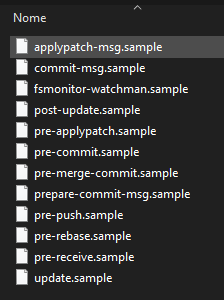
Git has a feature called hooks that allows the execution of automated tasks based on scripts at specific moments during the git workflow, these scripts are located in .git\hooks\ inside each repository’s folder (example: C:\repos\core\.git\hooks
This folder initially contains a set of example hooks, all named with .sample at the end of the filename. To use a hook, remove the .sample from the filename, it should be without extension, and modify its content.
To create a hook that runs before each commit (local), we will remove the .sample from the pre-commit.sample file and then edit its content.
To run tests, we will use the command: dotnet test "project path"
Each hook consists of a script written in any language, framework or tool that is executable on the computer triggering the trigger. The important point to remember is that a hook expects an output of 0 (zero) for success and any other value for failure.
So, in a simple way, we have the following script:
# !/bin/sh
echo "Running tests before commit..."
exec dotnet test "./CobaltoCore/Cbalto.Core.Tests/Cobalto.Core.Tests.csproj"In the script above, the command exec dotnet test (...) runs the tests of the project Cobalto.Core.Tests.csproj and returns 0 in case of success and 1 in case of error, exactly as the git hook expects and therefore no other validation is necessary.
File saved, when trying to execute a commit, the expected is that it occurs normally with the only difference being the time taken for the command to execute, after all now all tests will run in the background before the commit is actually executed.
If any test fails, the return will be negative and thus the commit is never executed. But don’t worry, you will receive a message at the end of the operation in the terminal.
And what about Visual Studio? (because I don’t know how to use the terminal 🤡)
The git hook is a feature of git, therefore it will be executed before the commit in the same way when called by Visual Studio.
Until the moment I’m writing this tutorial, there really is a lack of a minimally informative message in Visual Studio (it will only display an error if some test fails), I will check if this can be resolved and update this page with the results. It’s because I use the terminal 😅
Done, your commits now require success in all tests to be processed.
Remembering: Everything described here refers to the local repository as well as the execution of the tests, this does not substitute nor bypass the quality validations configured in your remote repository 🐙🐱
Don’t forget to change the test project path.
Remember that the script accepts any valid command, so you can extend it for several test projects and virtually any other process before the commit execution.
One more thing!
Do you remember how to undo local commits? Well, neither do I. (spoiler: git reset HEAD^)
I always end up having to search the internet for this annoying command when by accident 👀 I end up committing that appsettings.json or any other change made exclusively for local testing.
For this, I created an alias called uncommit that works as follows:
# !/bin/sh
git uncommit
# Yes, that's it.To define the uncommit alias, you can follow in two ways:
- Executing directly in the terminal
# !/bin/sh
git config --global alias.uncommit "reset HEAD^"- Editing the .gitconfig file of your user and adding an alias
# .gitconfig
[user]
    name = Daniel Cobalto
    email = cobalto@users.noreply.github.com
[alias]
uncommit = reset HEAD^Now you can uncommit your commits with a simple and easy to remember command.
Disclaimer: This text was originally written for the internal documentation that we maintain at the company where I work, but as there is nothing confidential in it, I am also sharing it here 😊
Comments